
How do you organize your projects? Are you the kind of person who drops reminders all over your calendar, uses a task‑tracking app, or scribbles everything down in the little notebook your organization gave you?
Personally, guilty of the last one. I used my notebook for a long time to jot down notes, set reminders, and keep track of my tasks. Until the day everyone on my team was using Planner. Now I’m the one encouraging people to switch to it.
And the reason I’m telling you this is because this tool truly deserves more love. Microsoft Planner is already included with Microsoft 365, so no extra cost and no complicated installation.
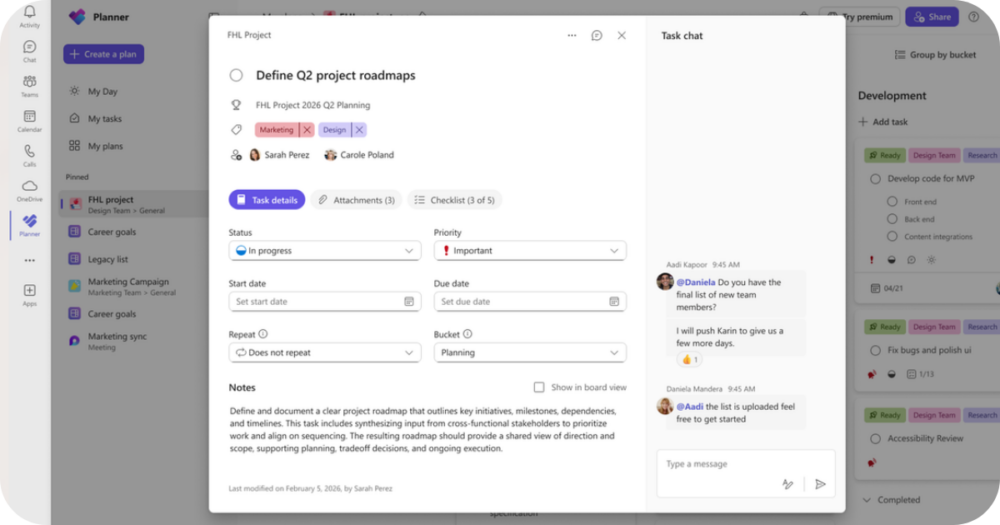
With Planner, you can create cards for your tasks, organize your projects into columns, track progress in a calendar, and even access stats on how things are moving along. In short, everything you need is there. Centralized, simple, and easy to use.
What you already know… and what you might be missing
If you’re familiar with Planner, nothing surprising so far. But what most users don’t realize is the power of the Microsoft ecosystem behind it.
Planner never works alone, and that’s where the tool really shines.
In practice, that means:
- Files you attach to tasks are automatically stored in SharePoint, ready for real‑time co‑editing.
- You can open, edit, and comment on documents without juggling windows or trying to locate the right version.
- Comments turn into a centralized conversation that shows up in both Teams and Outlook.
No more files named V1, V4, final_version, final_version_really. Everything stays clean, simple, and aligned.
Features you might not have tried yet
Here are a few options that often go unnoticed but can seriously upgrade your workflow.
Automatic sync with To Do
Every task assigned to you in Planner appears in Microsoft To Do automatically. Super useful when you’re juggling several projects at once.
Automatic plan summaries
Need a quick snapshot of your week? The built‑in Project Manager agent can generate a clear summary in seconds showing what’s late, what’s done, and what’s coming up.
Smart groups
Group your tasks by label, priority, owner, or due date. Perfect for team meetings, quick check‑ins, and spotting bottlenecks instantly.
The S3 rule
Creating a plan in Planner is easy. Making Planner a long‑term habit is something else. Here are our suggestions to make it truly useful for your team:
- Build a simple plan with 3 to 5 columns.
- Add only important tasks and put the rest in checklists.
- Always assign an owner since unassigned tasks never move forward.
- Add a due date to every task so your calendar, reminders, and priorities stay accurate.
- Keep statuses updated daily or weekly.
- Integrate Planner directly into Teams so your team uses it naturally.
Open Planner and give it a try. You’ll quickly see how much clearer and more efficient your project management can be.